For Windows 11 and macOS 13+

Your old iPhone, back at work.

Kickstand Cam turns an iPhone you no longer use into a webcam, a camera monitor or a scanner with text recognition for your computer. Connect over Wi-Fi or a USB cable. There is no account and no server: video goes from your phone to your computer and nowhere else.

  • iPhone X or later, iOS 16+
  • 720p · 30 fps H.264
  • Wi-Fi or USB cable
  • Encrypted with TLS 1.3

One app, three jobs

Pick a mode on the phone. The free companion app on your computer does the rest.

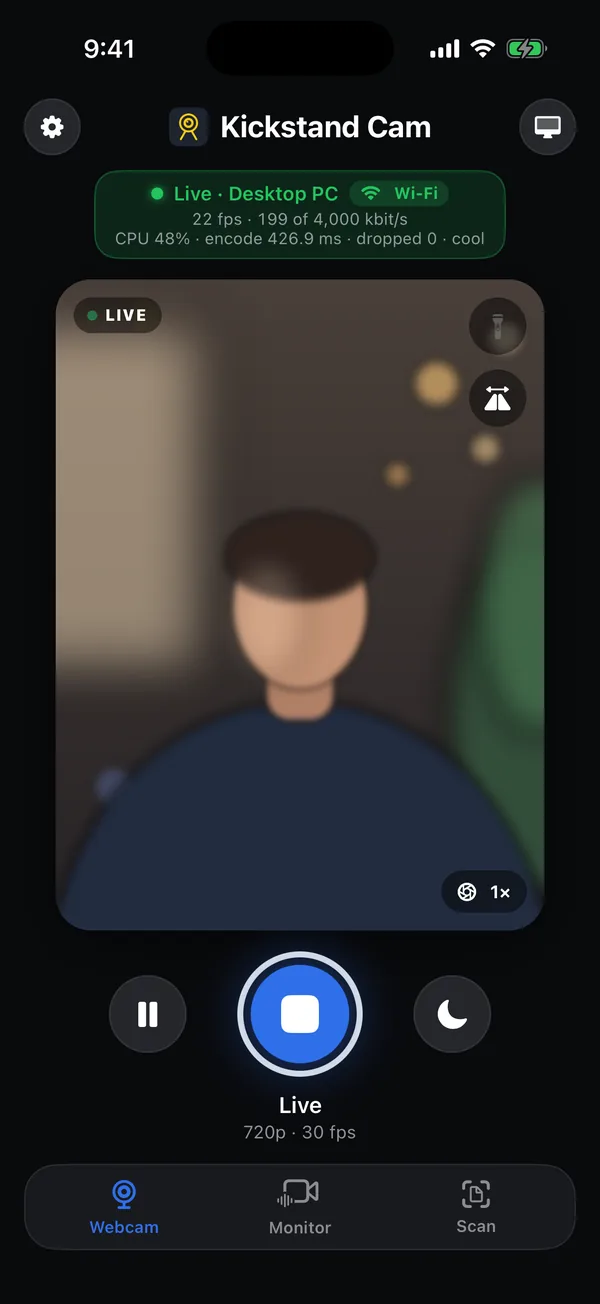
Kickstand Cam on iPhone in Webcam mode, live to a desktop PC over Wi-Fi
Webcam

A sharper camera for calls

  • Your computer sees a camera named “Kickstand Cam” in apps like Zoom, Teams, Meet, OBS and FaceTime.
  • Choose the lens, mirror, torch and zoom on the phone.
  • Pause from either side; the camera then shows a waiting picture instead of your last frame.
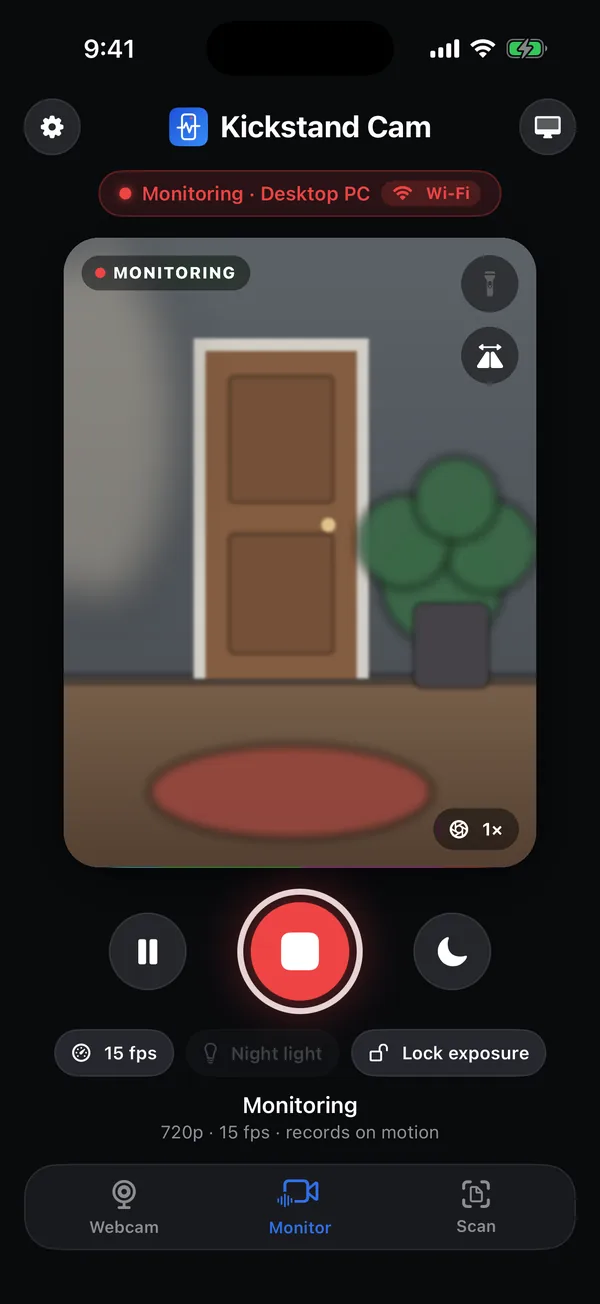
Kickstand Cam on iPhone in Monitor mode at 15 fps, recording on motion
Camera monitor

Recordings that stay home

  • The computer records the phone’s video into clips, with motion detection and desktop alerts.
  • Browse clips in the app. Keep them by days or by size (30 days or 20 GB by default).
  • Low-power options on the phone: 15 or 30 fps, screen off, night light, exposure lock.
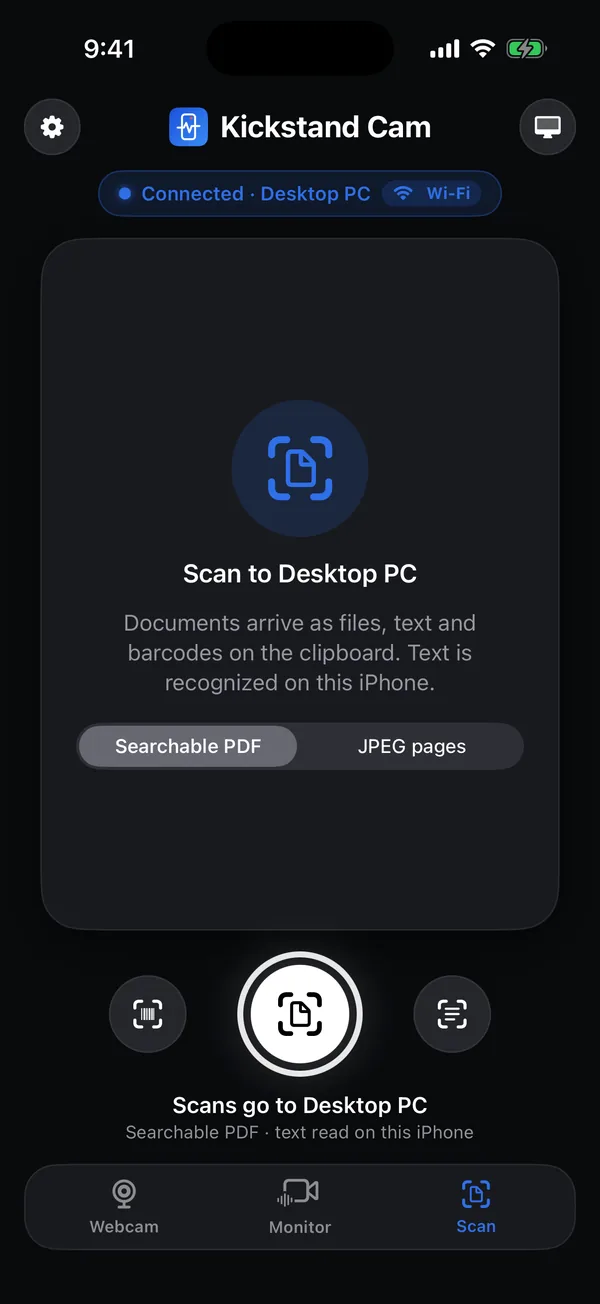
Kickstand Cam on iPhone in Scan mode, sending a searchable PDF to a desktop PC
Scanner + OCR

Paper to PDF, text to clipboard

  • Scan documents with crop and perspective correction into a searchable PDF.
  • Text is recognized on the iPhone and lands on your computer’s clipboard.
  • Scan barcodes and QR codes, and optionally type them into the app you’re using.

The computer side

A small tray app on Windows and a menu-bar app on Mac. Pair once by scanning a QR code; after that, open Kickstand Cam on the phone and it connects.

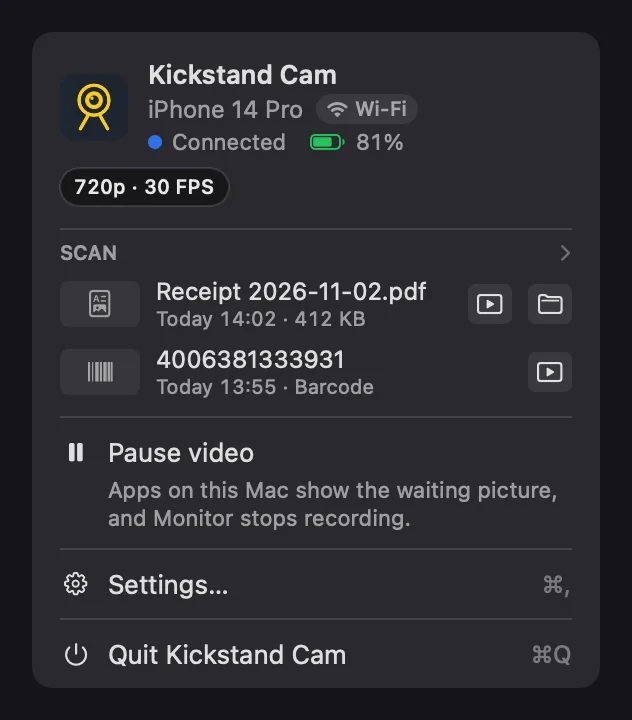
  • Live status with the phone’s name, link (Wi-Fi or Cable) and battery.
  • Pause the camera from the computer whenever you want.
  • Monitor and Scan pages for clips, motion settings and scan history.
  • Plug in a cable and it takes over from Wi-Fi, charging the phone while it streams.
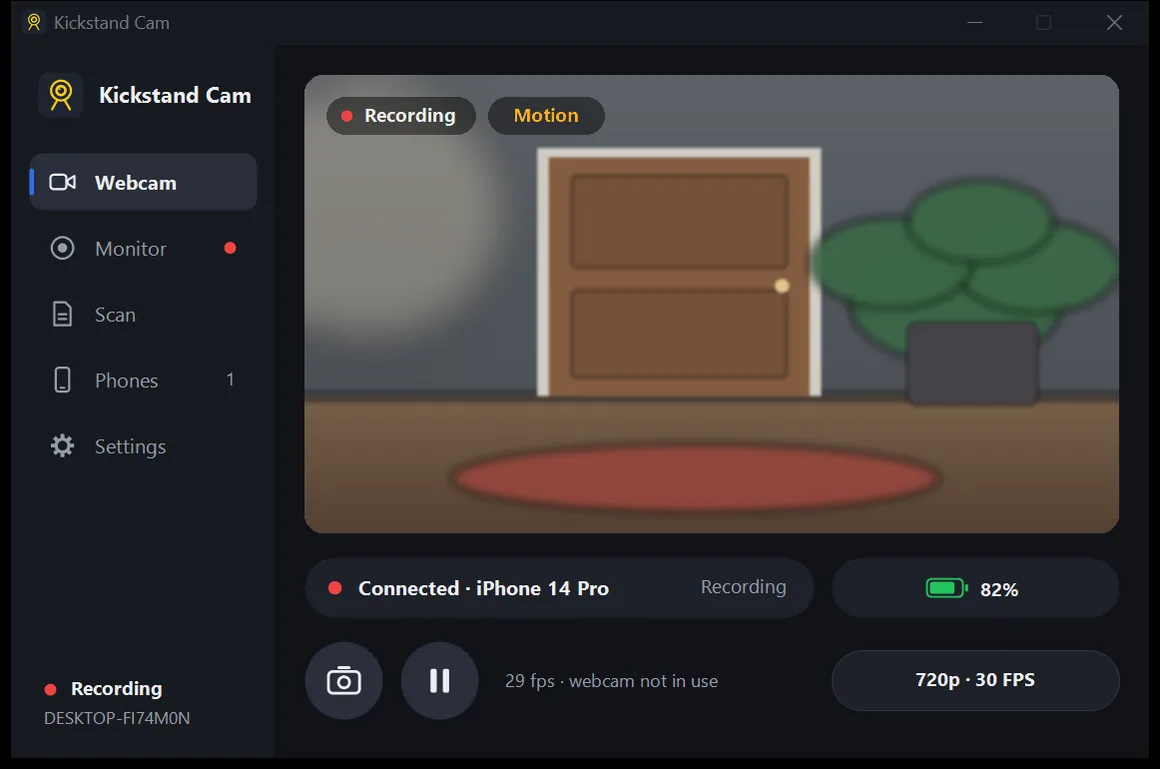
Kickstand Cam for Windows recording a motion clip from an iPhone 14 Pro

Private by design

Everything happens between your phone and your computer.

  • No account, no sign-in. You pair by scanning a code on your computer and checking a 6-digit code on both screens.
  • Encrypted both ways. Each device has its own key, and only devices you paired can connect, even over a cable.
  • No servers, no analytics, no ads. Recordings and scans are saved on your computer.
  • Text recognition runs on the iPhone.

Read the privacy policy

Kickstand Cam menu on a Mac: connected to an iPhone 14 Pro over Wi-Fi, with recent scans

What you need

iPhone

iPhone X or later on iOS 16 or later. The app must be open on the phone while it streams.

Windows

Windows 11 x64, version 22H2 or later. Windows 10 is not supported. For a USB cable, install Apple Devices from the Microsoft Store (or iTunes).

Mac

macOS 13 or later, Intel or Apple silicon. You approve the Kickstand Cam camera extension once in System Settings.

Connection

The phone and computer on the same Wi-Fi network, or a USB cable for a phone you have already paired.

Get Kickstand Cam

Install the free app on your computer, then get the iPhone app.

Then follow the setup guide: pair once, then just open the app on the phone.